Integrations
Turn your WhatsApp into a programmable API — send messages over HTTP, receive every incoming message in your own n8n account, and connect WhatsApp to Google Sheets, Gmail, Google Calendar and hundreds of other services.
Integration is what turns WA Sender Plus from a Chrome extension into an automation platform. It works in both directions:
- Outgoing — a real HTTP API for your WhatsApp number. Any script, server or no-code tool can send WhatsApp messages with a single
POSTrequest, authenticated by a personal token. - Incoming — every message that arrives on your WhatsApp is delivered, in real time, to a workflow in your own n8n account — which WA Sender Plus creates and wires up for you.
Put the two together and WhatsApp becomes a node in your business stack: leads flow into Google Sheets the second they message you, Gmail alerts fire on hot keywords, your shop confirms orders on WhatsApp automatically, and an AI agent can read and answer chats — all without writing a backend.
The API Access window
Everything lives in one place: open the Integrations icon in the dock and pick API Access. The window has two halves, mirroring the two directions: Outgoing — Send messages on top and Incoming — Receive via n8n below.
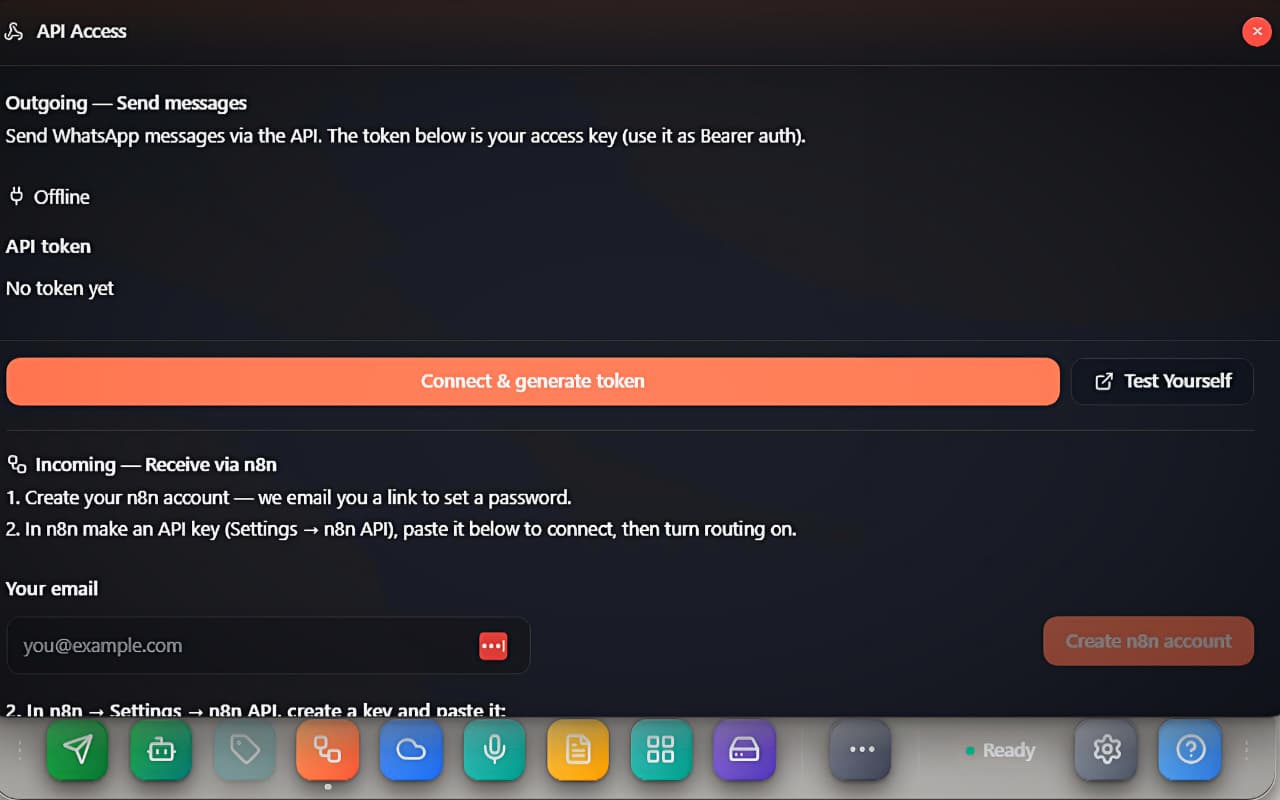 The API Access window — the Outgoing send API on top, the managed n8n incoming flow below
Outgoing — Send messages
The header says it plainly: "Send WhatsApp messages via the API. The token below is your access key (use it as Bearer auth)." Messages you send through the API go out from your own number, through your open WhatsApp Web tab — to the recipient it looks exactly like a message you typed.
A status line shows the live link between the extension and the API server: Offline, Connecting…, Connected, or Auth error. Sends only work while it reads Connected.
Generate your token
- Make sure you are logged in to WhatsApp Web (otherwise the window tells you "Log in to WhatsApp Web first.").
- Click Connect & generate token. The API token field fills with a key starting with
wa_live_— copy it now. The server stores only a hash, so the full token is shown this one time. - Done. The status flips to Connected and the token is live.
Need a fresh key? Regenerate token rotates it (the old one stops working immediately). Disconnect & revoke kills the token and takes the number offline for API callers.
The Test Yourself button opens the interactive API explorer at https://waapi.effess.in/v1/docs — a live console where you can paste your token, fire test calls from the browser and read the full schema of every endpoint.
Send a text message
One request:
curl -X POST https://waapi.effess.in/v1/wa/messages/text \
  -H "Authorization: Bearer wa_live_…your-token…" \
  -H "Content-Type: application/json" \
  -d '{"to": "919876543210", "message": "Hello from the API 👋"}'
to— the recipient's phone in international format, digits only, no+(e.g.919876543210).message— the text, up to 65,536 characters.
A successful reply carries the device's real WhatsApp message id:
{ "success": true, "result": { "messageId": "3EB0…" } }
Send media and files
POST /v1/wa/messages/media sends an image, video, audio file or document:
curl -X POST https://waapi.effess.in/v1/wa/messages/media \
  -H "Authorization: Bearer wa_live_…your-token…" \
  -H "Content-Type: application/json" \
  -d '{
    "to": "919876543210",
    "type": "image",
    "dataUrl": "data:image/jpeg;base64,/9j/4AAQ…",
    "fileName": "offer.jpg",
    "caption": "This week only"
  }'
type—image,video,audioordocument(defaultdocument).- The file itself goes as a
dataUrl(data:<mime>;base64,<data>), or asbase64plusmimeType. fileNameandcaptionare optional.
Send interactive buttons
The same token can also fire button messages through POST /v1/wa/baileys/send-buttons. Buttons don't travel through your WhatsApp Web tab — they go out from a number connected server-side via Connect WhatsApp on the dashboard (see the server-side section of the Agentic tools doc). If you have connected a number there, your n8n flows can send tappable quick-reply buttons, URL buttons and list menus out of the box.
Status, errors and limits
| Reply | Meaning |
|---|---|
200 {"success": true} | Sent — result carries the real message id. |
409 device-offline | No live extension socket — open WhatsApp Web with the extension and check the window reads Connected. |
504 command-timeout | The device did not acknowledge in time (tab frozen or just lost connection). |
502 send-failed | The device tried and WhatsApp refused (e.g. the number has no WhatsApp). |
Rate limits: 60 text and 30 media calls per minute. One more thing the limits won't save you from: API sends are fired exactly when you call them — the bulk sender's human-like pacing is not applied. If you script a sequence, add your own randomised delays and read the anti-blocking guide first.
Incoming — Receive via n8n
This is the half that makes the feature special. Instead of asking you to rent a server and host a webhook receiver, WA Sender Plus gives you a managed n8n account — your own login on a hosted n8n instance, created from inside the extension. n8n is the open-source automation tool used by hundreds of thousands of teams: visual workflows, hundreds of ready-made connectors (Google, CRMs, shops, AI), no code required.
The window walks you through it in two numbered steps, exactly as labelled in the UI.
Create your n8n account
Type your email under Your email and click Create n8n account. The window confirms: "Invite sent to your email — check your inbox to set your n8n password, then log in." Open the invite, set a password, and you have a full n8n workspace of your own. (If the invite link is also shown in the window as Open invite link, you can click it directly.)
Connect your n8n API key
Step 2, as the window says: "In n8n → Settings → n8n API, create a key and paste it:". In your new n8n workspace open Settings → n8n API, create an API key, paste it into the field and click Connect.
The moment you connect, WA Sender Plus builds the plumbing for you inside your n8n account: it creates and activates a workflow named WA Incoming — your number, with a ready-to-use Webhook trigger node. The window now shows API key connected and Your webhook URL — the address your WhatsApp traffic will hit. You never have to configure the trigger yourself.
Route incoming messages
Flip the switch Route incoming messages to n8n. From that moment, two kinds of events stream into your workflow:
message.received— every incoming WhatsApp message on your number.button.pressed— every tap on an interactive button sent via the button gateway.
Delivery is serious: each event is retried up to 3 times with backoff if your workflow is slow to answer, and every delivery is signed (next section). The toggle pauses routing any time without losing the setup; Disconnect n8n removes the auto-created workflow and wipes the connection.
What your workflow receives
Each event is an HTTP POST to your webhook URL with this envelope:
{
  "event": "message.received",
  "account": "917284043210",
  "timestamp": "2026-06-10T09:30:00.000Z",
  "data": {
    "messageId": "3EB0A1B2C3…",
    "from": "[email protected]",
    "phone": "919876543210",
    "chatPhone": "919876543210",
    "senderName": "Asha Patel",
    "isGroup": false,
    "body": "Hi, what is the price?",
    "type": "chat",
    "isoTime": "2026-06-10T09:29:58.000Z",
    "isFirst": true,
    "quotedMsgId": null,
    "hasMedia": false,
    "mimetype": null,
    "lat": null,
    "lng": null
  }
}
The useful fields at a glance:
| Field | What it holds |
|---|---|
phone / senderName | The sender's number (digits) and display name. |
body / caption | The message text, or the media caption. |
isGroup / from / author | In a group, from is the group id and author is the actual sender. |
isFirst | true on the very first message a contact ever sends you — your "new lead" signal. |
type / hasMedia / mimetype / filename / duration | What kind of message it is; for media, the metadata (the binary itself is not forwarded). |
quotedMsgId / quotedBody | What the sender replied to, if anything. |
lat / lng | Coordinates for shared locations. |
Every request carries two headers: X-WA-Event (the event name) and X-WA-Signature (sha256=<hex> — an HMAC-SHA256 of the raw body with your endpoint secret), so a workflow can verify the call genuinely came from WA Sender Plus.
Build automations in n8n
Your n8n workspace is a visual canvas: the auto-created WA Incoming workflow starts with the Webhook trigger, and you build by snapping nodes after it — filters, transformations, and connectors to outside services. No code, drag and connect.
<!-- screenshot: drop /screenshots/docs/integrations/n8n-workflow.jpeg here -->Your first auto-reply flow
The classic first build — answer price questions automatically, end to end in five minutes:
- Open the WA Incoming workflow in n8n.
- Add an IF node after the Webhook: condition —
data.bodycontainsprice. - On the true branch add an HTTP Request node: method
POST, URLhttps://waapi.effess.in/v1/wa/messages/text, anAuthorization: Bearer wa_live_…header, and body{"to": "{{ $json.data.phone }}", "message": "Our price list: …"}. - Publish the workflow and message yourself from another phone.
The loop is closed: WhatsApp in, logic in the middle, WhatsApp out — using the same Outgoing token from the top of the window. For everyday keyword replies the in-extension Agentic tools are simpler; n8n is for when the answer must touch other systems — stock lookups, CRM checks, payments.
Google Sheets
The most-requested integration, and the reason the n8n route shines: n8n ships a first-class Google Sheets node with official Google sign-in. No API keys to manage — connect your Google account once inside n8n and your sheets are writable from any workflow.
<!-- screenshot: drop /screenshots/docs/integrations/google-sheets-flow.jpeg here -->Capture every lead in a sheet
The five-minute lead book:
- In the WA Incoming workflow, add an IF node:
data.isFirstistrue— so only brand-new contacts pass. - Add a Google Sheets → Append row node and sign in with Google.
- Map the columns:
data.phone→ Phone,data.senderName→ Name,data.body→ First message,data.isoTime→ When.
Done. Every first-time contact lands as a fresh row in your sheet, the second they message you — a live lead book your whole team can see, filter and act on. Add more branches to also log keyword hits ("interested", "order", "demo") to other tabs.
Tip: campaign results have their own one-click export too — the bulk sender's Analytics view has an Open in Google Sheets button per campaign (see bulk sender).
Send from a sheet
The reverse direction also works: a Schedule Trigger node reads rows from a sheet (say, today's payment reminders), loops over them, and calls the send API for each row — then writes "sent" back into a status column. Two rules keep it safe:
- Put a Wait node with a randomised delay between sends — the API applies no pacing of its own.
- For real campaigns to hundreds of people, use the bulk sender instead — pacing, hourly caps, spintax and analytics are built in. Sheet-driven sending is for small, triggered, transactional lists.
More Google tools
The same Google sign-in inside n8n unlocks the whole Workspace family. Each of these is one node added after your Webhook trigger:
Gmail
Email yourself (or your sales team) when something important happens on WhatsApp: an IF node watching for keywords like urgent or complaint, then Gmail → Send email with the sender, message and time filled from the payload. Or invert it — a daily Schedule Trigger that collects the day's leads and emails one digest.
Google Calendar
When a customer writes "book", "appointment" or "demo", create an event with Google Calendar → Create event, then confirm back on WhatsApp through the send API — an HTTP Request node with {"to": "{{ $json.data.phone }}", "message": "Booked! See you tomorrow at 4 pm."}.
Google Drive and Docs
Archive what matters: append important conversations to a running Google Doc, or create one Drive folder per new customer the first time they write (data.isFirst), so quotes and invoices have a home before the first call even happens.
Google Contacts
Auto-save every new lead: on data.isFirst, a Google Contacts → Create contact node stores the number and name — so the lead exists in your address book across all your devices, even if you never save it on the phone.
Connect any other service
Google is just the start. Your n8n account ships hundreds of ready-made connectors, and they all snap onto the same WhatsApp trigger:
- CRMs — HubSpot, Salesforce, Zoho CRM, Pipedrive: create or update a contact/deal from every WhatsApp conversation.
- Shops — Shopify, WooCommerce: a new order triggers a WhatsApp confirmation through the send API; a "where is my order" message looks up the order and answers with live status.
- Team chat — Slack, Telegram, Discord: forward hot leads to your sales channel the moment they write.
- Databases & docs — Airtable, Notion, MySQL, Postgres: log, look up, enrich.
- AI — OpenAI and friends: classify intent, draft a reply, summarise a long customer rant before a human reads it.
And for the one tool that has no ready node: the generic HTTP Request node speaks to any REST API on the internet — in both directions, since your WhatsApp side is itself just HTTP now. That is the whole point of this feature: WhatsApp stops being an island.
Good to know
- The token is shown once. The server keeps only a hash. Lose it → Regenerate token (the old key dies instantly).
- Sends ride your open WhatsApp Web tab. Chrome must be running with WhatsApp Web logged in and the extension active — otherwise callers get
409 device-offline. (Button messages are the exception: they go through the server-connected number.) - No pacing on the API. Space out scripted sequences yourself; for volume, use the bulk sender.
- The n8n account is genuinely yours. Your email, your password, your workflows — WA Sender Plus only creates the WA Incoming workflow inside it. Edit it freely; just keep the Webhook trigger node.
- Media binaries are not forwarded to n8n — you get the metadata (
type,mimetype,filename,duration), not the file. - Group traffic is flagged —
isGroupistrue,fromis the group,authoris the human who wrote. - The token also powers the Cloud Inbox. The same socket that carries API sends delivers live Cloud API pushes — with a token connected, that inbox updates in real time.
- Everything is per-number. Each WhatsApp account you run has its own token, its own n8n routing and its own webhook secret.
Troubleshooting
- Status stays Offline — log in to WhatsApp Web, then click Connect & generate token (or Regenerate token) again.
- API calls return
409 device-offline— the WhatsApp Web tab is closed, or the extension lost its socket. Open the tab and wait for Connected. - n8n workflow not triggering — the window's own hint is the fix: "Not triggering? In n8n, unpublish the workflow then publish it again once — that registers the webhook." Also confirm the Route incoming messages to n8n toggle is on.
- "n8n is not configured on the server yet." — the managed n8n service is not enabled on your server build; contact support.
- "Invalid n8n API key." — the key was mistyped or deleted in n8n. Create a fresh one under Settings → n8n API and connect again.
- No invite email — check spam, or use Open invite link in the window when it is shown.
- Deleted the WA Incoming workflow by mistake? Click Disconnect n8n, then run the connect step again — a fresh workflow and webhook URL are created.
- Signature verification fails — compute the HMAC over the raw request body (before any JSON re-encoding), with the secret, and compare against
X-WA-Signatureafter thesha256=prefix.