Tag Management
Organize WhatsApp chats with colour-coded tags, then filter, bulk-tag and bulk-send to every chat that shares a tag — all from one place.
Tag Management turns WhatsApp Web into a lightweight CRM. You attach colour-coded tags to chats, see them as chips right on the native chat list, filter the inbox down to a tag, tag dozens of chats in one pass, and bulk-message everyone under a tag. Everything is stored locally, per WhatsApp number — no cloud, no sign-up.
Open the WA Sender Plus dock and click the teal Tag icon. A glass Tags popover opens with four tabs across the top, in this order: Apply, Manage, Filter and Bulk. This page walks through each tab in that same order, then shows how tags power the bulk sender.
A few things to know before you start:
- Apply needs an open chat. The Apply tab only works while a chat is open on the right — until then it stays disabled by design (the hint reads "Open a chat first to apply tags.").
- Unlimited tags. Create as many as you need, each with any name and any colour from an 8-swatch palette (Teal, Blue, Green, Yellow, Orange, Red, Purple, Gray) or a custom hex.
- Many tags per chat. A single chat can hold any number of tags; they render as inline chips on its chat-list row.
- Bound to the chat, not the name. Tags are keyed to the WhatsApp chat ID (LID-aware), so renaming a contact never breaks the chips.
Apply
The Apply tab is the per-chat surface — it tags whichever chat is open on the right.
- Chat identity card — the panel header shows the open chat's avatar, name and
+phone, so you always tag the right one. - Applied tags — under the Applied tags label sit the chips already on this chat, each with a small × to remove it in one click. Before you add any, it reads "No tags applied yet".
- Search and toggle — type in the Search tags… box to filter the list, or scroll. Every row shows a colour dot, the tag name and its usage count; click a row to toggle the tag on or off (a check marks the active ones).
- Inline create — if what you typed doesn't match an existing tag, a + Create "…" and apply button appears. Click it to create the tag (auto-coloured from the next palette swatch) and apply it to the open chat in a single step.
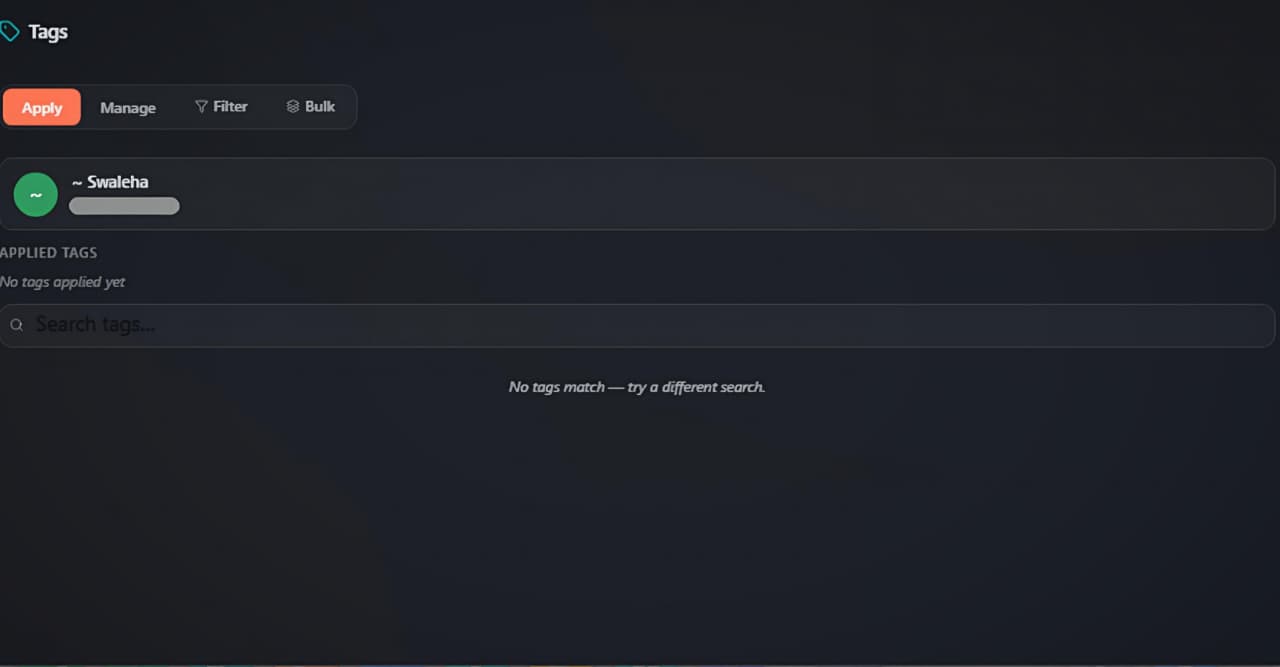 Apply tab: the open chat's identity card, applied tags and the searchable tag list
Manage
The Manage tab is the full CRUD surface for your tags. It works whether or not a chat is open.
- New tag — the New tag button beside the search box opens a drawer where you set a name, a colour and an optional description.
- Rename / recolour — the pencil icon on any row reopens that drawer pre-filled.
- Delete — the trash icon opens a cascade-aware confirmation that tells you how many chats carry the tag and warns the removal is permanent.
- Count pill drill-down — each row shows a clickable "{n} chats" pill. Click it to expand a list of every chat linked to that tag, read straight from local storage — so it includes chats that no longer exist in WhatsApp's list.
Inside the drill-down, each chat row shows:
- A green In chat list badge if the chat is still in WhatsApp, or an amber Not in chat list badge if it was deleted, archived or hasn't loaded.
- An Open button — re-opens the chat (re-materialising it from the saved phone number if the chat was deleted).
- A Remove from tag button — clears that single link.
- When stale orphans exist, a Remove {n} missing button appears at the top — one click cleans them all so the count pill matches reality.
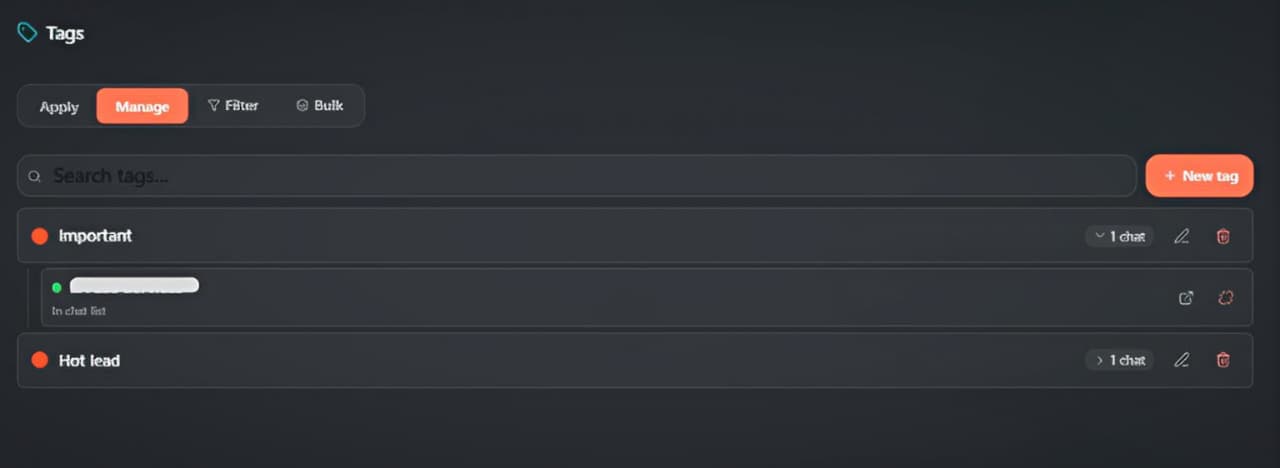 Manage tab: New tag button, tag rows with count pill, edit and delete, and an expanded chat drill-down
Filter
The Filter tab narrows WhatsApp's live chat list down to the tags you pick — a quick way to work one segment at a time.
- Match toggle — switch between Any tag (show chats with at least one selected tag) and All tags (only chats that carry every selected tag). All-mode needs two or more tags selected.
- Tag chips — every tag shows as a coloured chip with its own match count; click to toggle it into the filter. Selected chips pin to the front, and Showing {shown} of {total} tracks how many tags are visible.
- Clear filter — the Clear filter button drops every selection and restores the full chat list.
- A footer note reminds you: "Only matching chats are shown in WhatsApp."
Heads up: the Filter tab only hides rows that exist in WhatsApp's live chat list. A tagged chat that was deleted or archived can't appear here — use the Manage drill-down to see and clean those up.
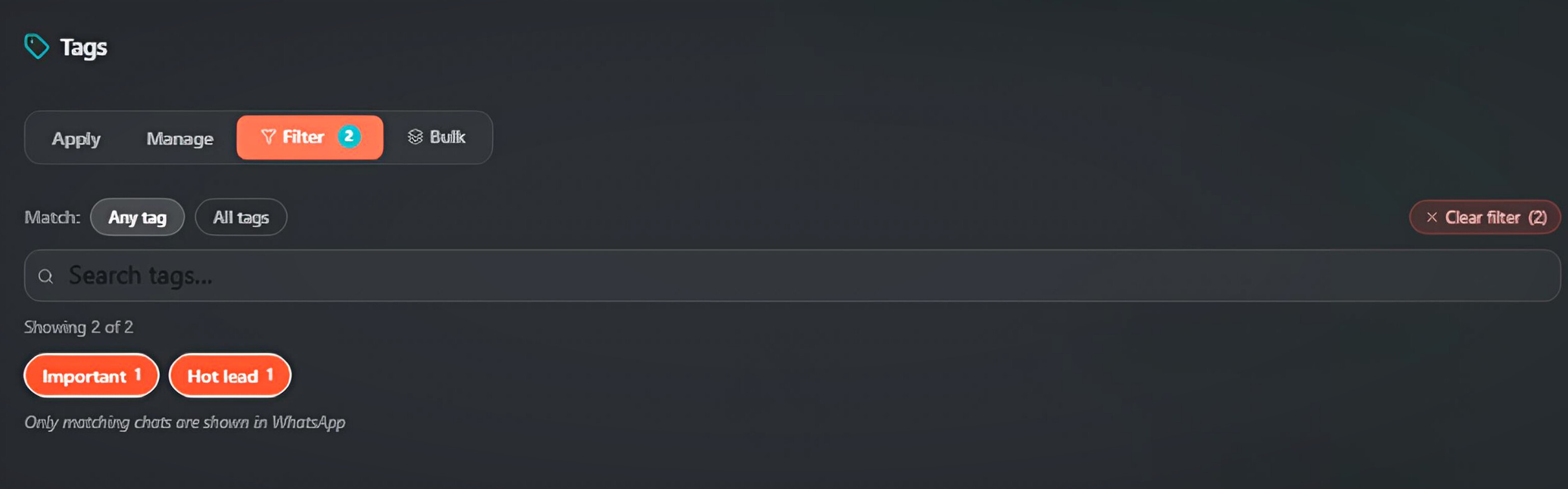 Filter tab: Any/All match toggle, clear filter, and the coloured tag chips with match counts
TagDock quick-add
The TagDock is a slim floating bar that sits above WhatsApp's chat list (toggle it from the dock). It mirrors the Filter tab but also accepts drag-and-drop:
- Click and hold a chat row.
- Drag it up onto a tag pill in the TagDock.
- Drop — the tag is applied instantly.
The same bar also exposes Kanban pipeline stages, so you can drag a chat straight onto, say, Sales → Qualified to create a deal in one gesture.
Bulk
The Bulk tab tags many chats at once — built for new users who would otherwise open each chat to tag it from the Apply tab. It loads a multi-select grid of every WhatsApp chat the first time you enter it.
- Search — find chats by name or phone with the Search by name or phone… box.
- Chat-type pills — a single-select row of native-WhatsApp categories: All, Unread, Favourites, Groups, One-to-One, Business, Official, Saved, Unsaved, Muted, Pinned, Archived, Broadcast, Channels, Community. An Untagged only toggle narrows to chats with no tags yet.
- Filter by tag — restrict the list to chats already carrying chosen tags.
- Select all / Clear — bulk-select the visible rows or wipe the selection; a {n} selected counter tracks your pick. Each row has a checkbox, an avatar, the chat name/phone and coloured dots for its current tags.
- Add tags / Remove tags — pick the tag chips to apply and/or strip.
- Apply — runs the change across every selected chat with a live Applying {done}/{total}… progress bar, then a Done — updated {count} chats toast. Writes are idempotent, and the row dots plus Manage counts refresh immediately.
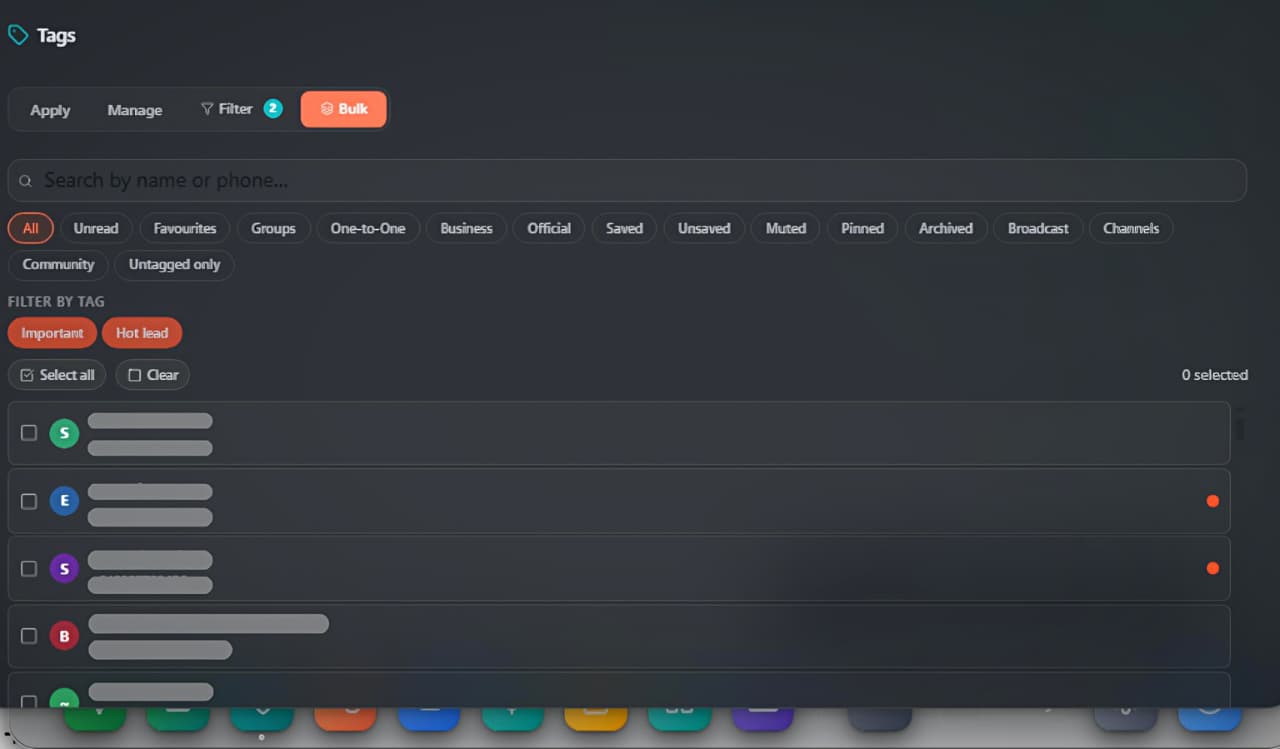 Bulk tab: search, the 15 chat-type pills, filter-by-tag, select-all and the multi-select chat list with tag dots
Bulk-send by tag
This is the payoff — tag a group of chats once, then reuse that segment forever from the Bulk Sender.
Tags as a recipient list
- Open the dock → Bulk Sender.
- In Recipients, switch the source to the Tag tab.
- Pick one or more tags — the campaign targets every chat under them, and a live "chats resolved" count shows your reach.
- Compose the message, set pacing, send.
Tag actions after sending
In Bulk Sender → Audience actions there is a Tag panel with two pickers:
- Add tags — apply these tags to every recipient after the message sends successfully.
- Remove tags — strip these tags from every recipient.
Both run through the same canonical write path the Apply tab uses, so chips appear or disappear on the chat list in real time. Re-running the same campaign never double-applies — the writes are idempotent.
Send once per contact
The same Audience actions section has a Skip tag picker. Add a tag here to skip any recipient whose chat already carries it. The common pattern is "Add tag X today, set Skip = X tomorrow" — yesterday's recipients automatically drop out of the next run, so nobody is messaged twice.
<!-- screenshot: drop /screenshots/docs/tag-management/bulk-send.jpeg here -->On the chat list
For any tagged chat, WA Sender Plus paints two things directly onto the native WhatsApp row:
- A coloured left-border stripe, tinted with the most-recently-applied tag's colour.
- Inline tag chips — the first two render full-width with the tag name; tags three through six collapse into small coloured rectangles; anything above six collapses into a single rainbow +N chip (hover lists the rest).
If the chat also has an active Kanban deal, its pipeline and stage name appears as a separate chip to the right. Chips update within milliseconds of any tag write — in any tab or via the bulk sender — so the chat list always reflects the latest state.
<!-- screenshot: drop /screenshots/docs/tag-management/chat-list.jpeg here -->Good to know
- Local-only. All tags live in your browser's IndexedDB, scoped to the logged-in WhatsApp number. There is no cloud sync between devices — use the Backup & Restore dock for a JSON snapshot.
- Per-number isolation. Each WhatsApp number you log into gets its own tag set; Number A's tags never leak into Number B.
- Hard delete. Deleting a tag clears its chip from every chat in one cascade. There is no undo — only the cascade-aware confirmation modal.
Troubleshooting
- Chip didn't update after a bulk send? Reload the WhatsApp Web tab (Cmd/Ctrl-R). The renderer reconciles on every write, but an upgrade mid-campaign can briefly fall out of sync.
- A tag's count says 12 but the filter shows 9? Three chats were probably deleted from WhatsApp. Open Manage → click the count pill → Remove {n} missing to reconcile.
- Tags disappeared after switching WhatsApp number? That's expected — tags are per-number. Switch back, or export from the first account via Backup & Restore and import into the second.
- Chip missing on one specific chat? Open that chat once so WhatsApp renders its row, then check again. Brand-new chats sometimes have no row until you interact with them.